Product
What Supervision does
Supervision is an ONVIF VMS for any camera brand. Everything on this page ships today in the desktop app for macOS and Windows and the server it bundles. Where something is still coming, it says so.
Camera discovery
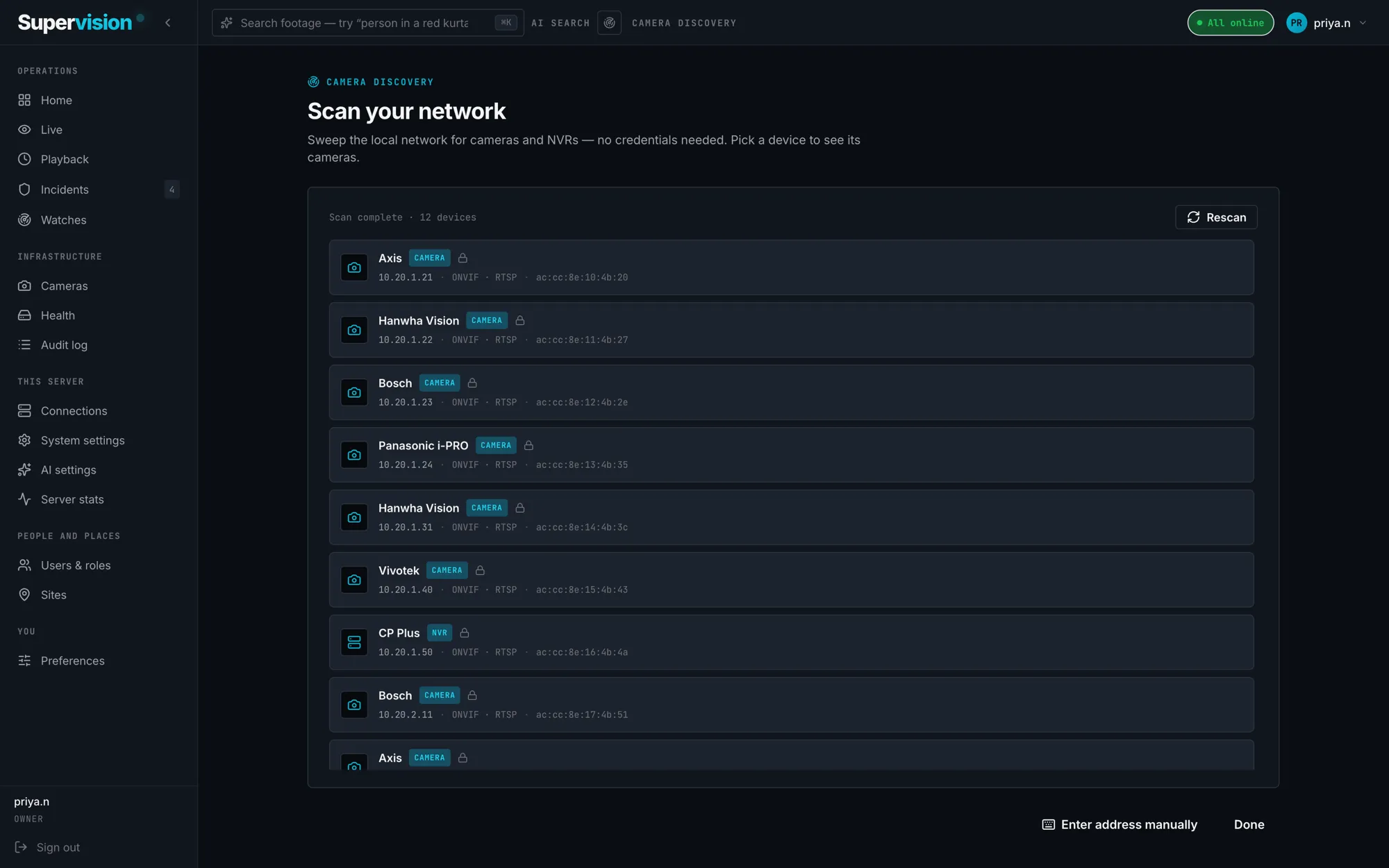
Point Supervision at your network and it sweeps the subnet (Your local network's address range) for cameras and recorders. The sweep uses WS-Discovery on UDP 3702 and probes RTSP (Plain video stream nearly every camera offers) on port 554, so a device that has ONVIF (Open standard most IP cameras speak) switched off still turns up. No login is needed just to find something.
When you bring a device online you enter its credentials once. Supervision authenticates, lists every channel on an NVR (Network video recorder: one box, many cameras), detects the main stream and the substream (Lighter second stream, used for grids), and checks that each stream actually plays before anything is saved. A camera that only answers on an odd port can be added by address. Adding a site's cameras usually takes a few minutes, not an afternoon with vendor manuals.
Live view
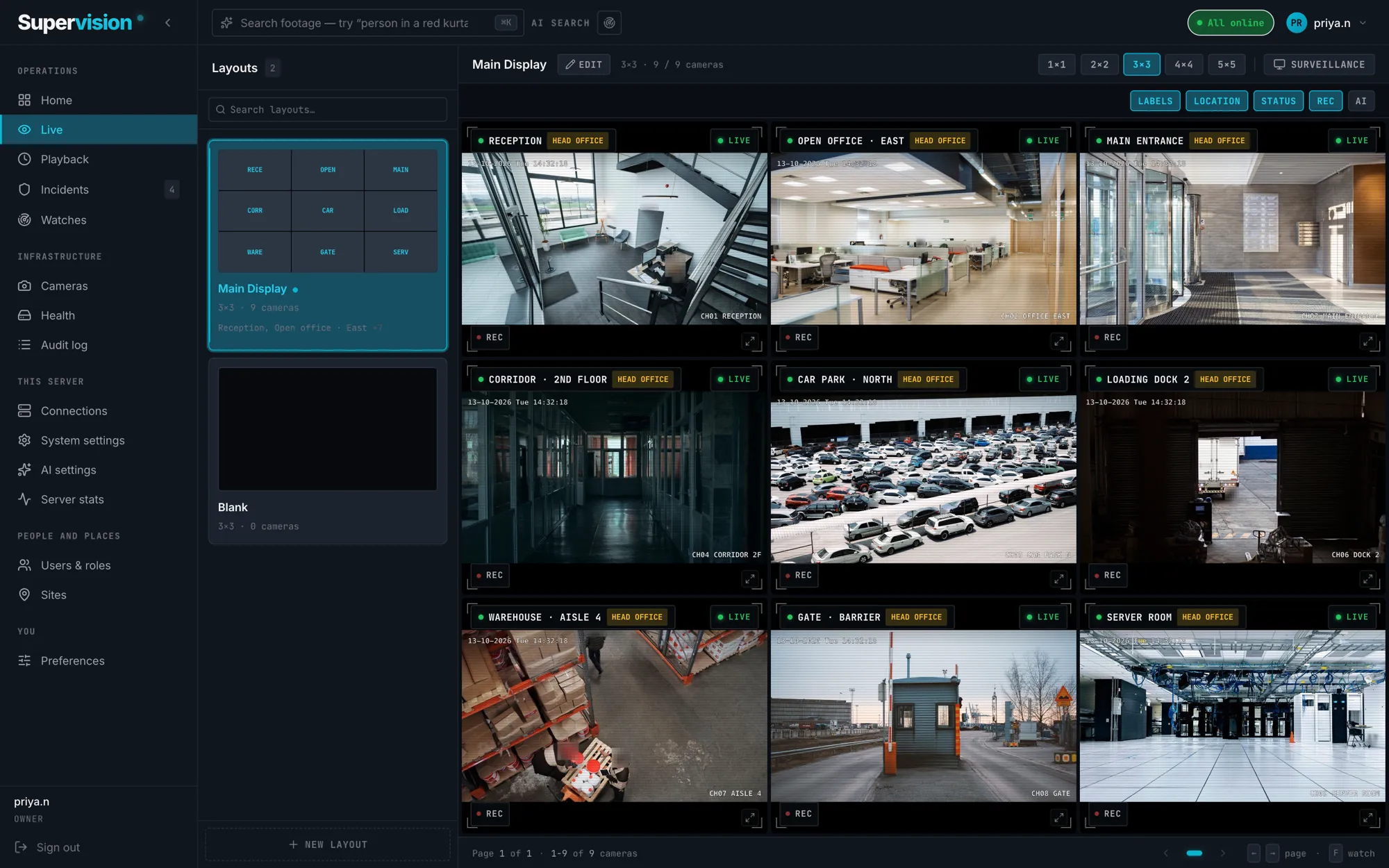
Build named layouts from 1×1 up to 5×5, put any camera in any tile, and switch between them from the sidebar. Live video runs over WebRTC (Real-time video, the tech behind video calls) and starts in under a second on the local network. If the network can't carry WebRTC, the tile switches to HLS (Steadier streaming for slow networks) and moves back when it can. If a stream drops, the tile reconnects by itself.
Surveillance mode shows the same layout full screen without any window chrome, for a monitor on the wall. It can tour through every page of cameras on a timer, and the labels, location and REC overlays are each on or off. PTZ cameras can be steered from the tile.
Synced playback
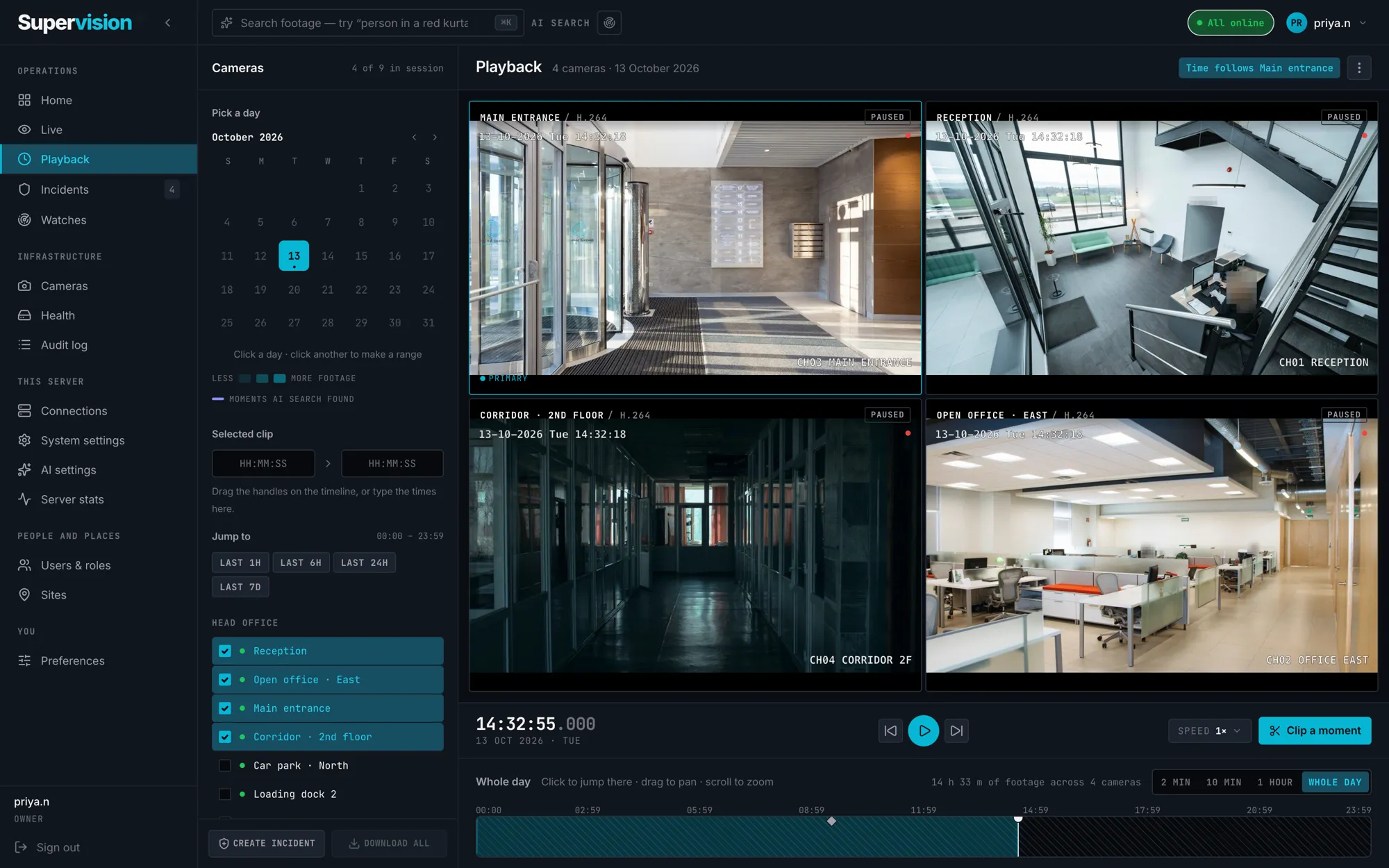
Playback keeps several cameras on one clock. Pick the cameras that saw a corridor, drag the playhead, and every tile moves together, so a person who walks out of one frame walks into the next at the same second. Each channel has its own timeline underneath, shaded where there is recording, and the calendar is shaded by how much was recorded on each day.
Recording is in the camera's native codec, H.264 or H.265, with retention (How long recordings are kept before deletion) pruned every hour and capped by what the disk can hold. Any stretch of the timeline can be exported as an MP4 clip without re-encoding.
AI search
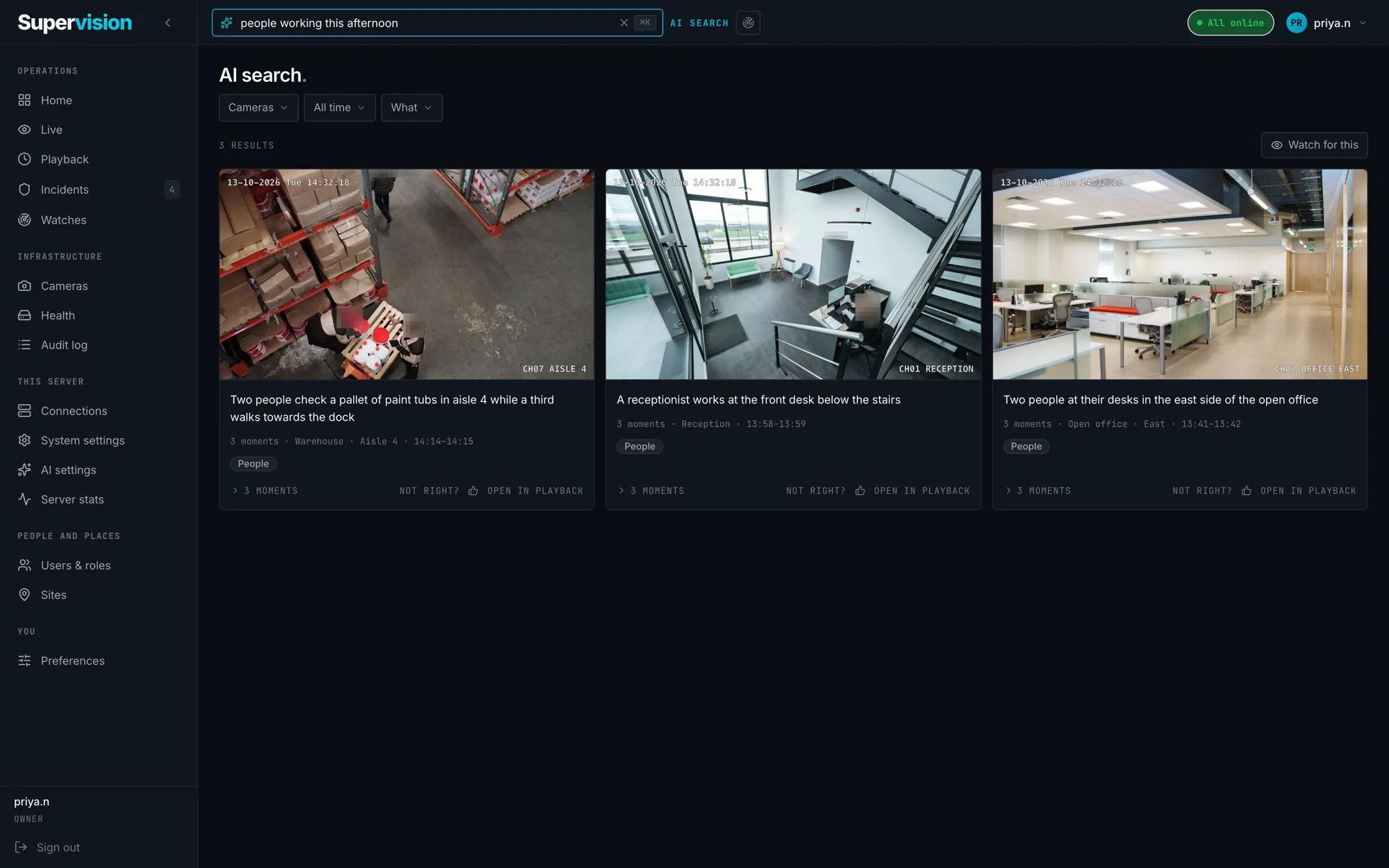
Type what you are looking for the way you would say it to a colleague: a person in a white shirt, a van at the dock after midnight, a roller door left open. Supervision searches the recorded footage of every camera at once and returns the moments that match, each with the frame and the camera. Narrow it by a time range or a set of cameras.
Leave a search running and the desktop app notifies you when a live camera matches it. A match can be turned into an incident in one step. The search runs on your own server, on its GPU (Graphics card: takes video work off the CPU) where there is one, and nothing is sent anywhere else. It finds what you describe. It does not identify who anyone is.
Incidents and export
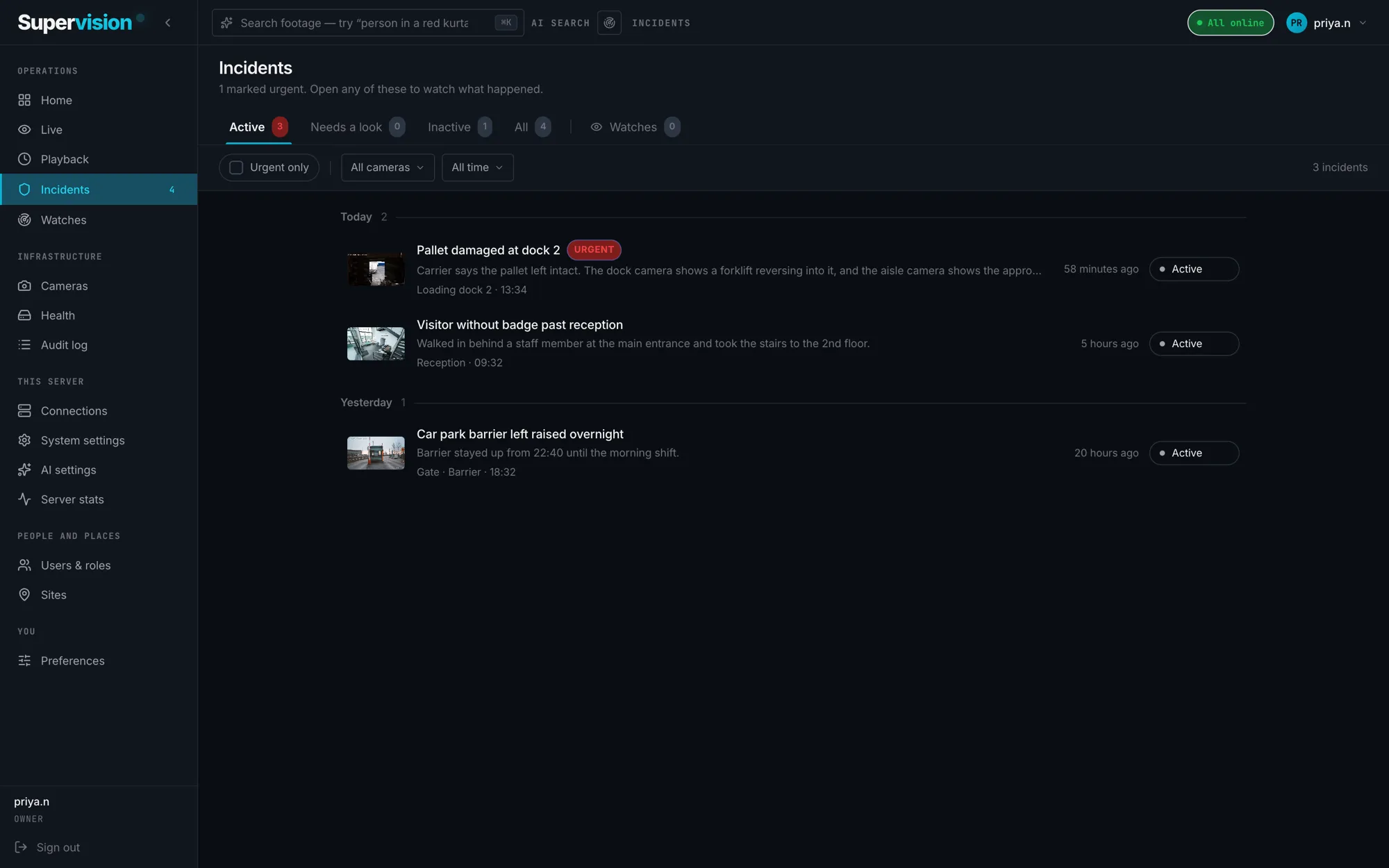
An incident is the record you hand over: the clips from every camera that saw it, a priority, a status that moves from open to in review to resolved, and notes. Flag a moment from the timeline or from a search match, attach the other cameras, and the clips are cut for you.
Export is an MP4 per clip, or a ZIP of all of them, with the camera name and timestamp burned in so the file still makes sense on its own. Every export is written to the audit log with who did it and when.
Camera health
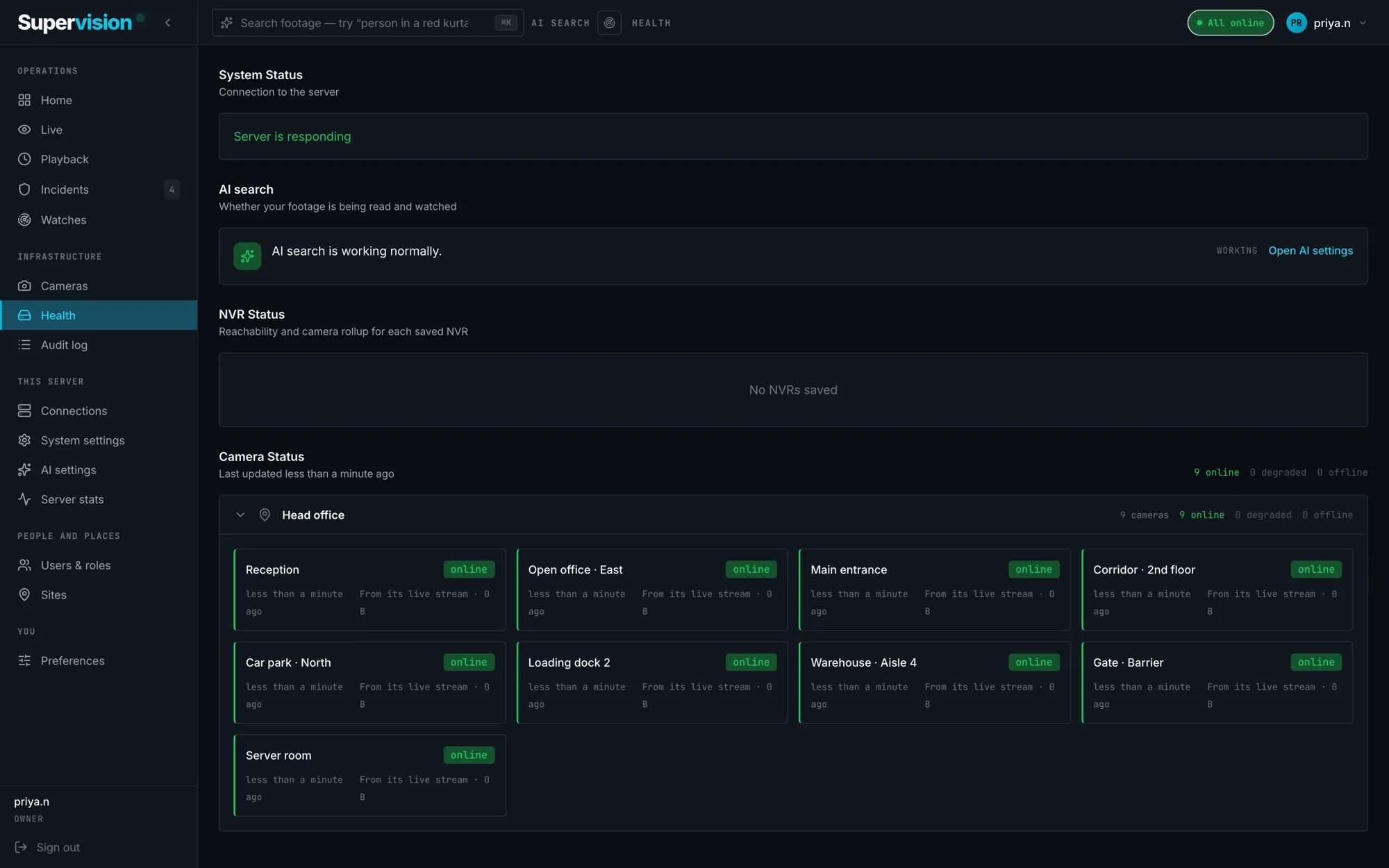
Every camera is checked every 10 seconds. Its status is online, degraded or offline, and each of those comes with the reason: no route to the host, authentication rejected, stream stalled, keyframes too far apart. If a camera goes offline at 2 a.m., you know that night, not weeks later when someone asks for the footage.
The health page also shows storage used per camera, which makes it easy to spot a camera recording at a higher bitrate than it needs. Retention and the disk cap are visible in the same place.
Users and roles
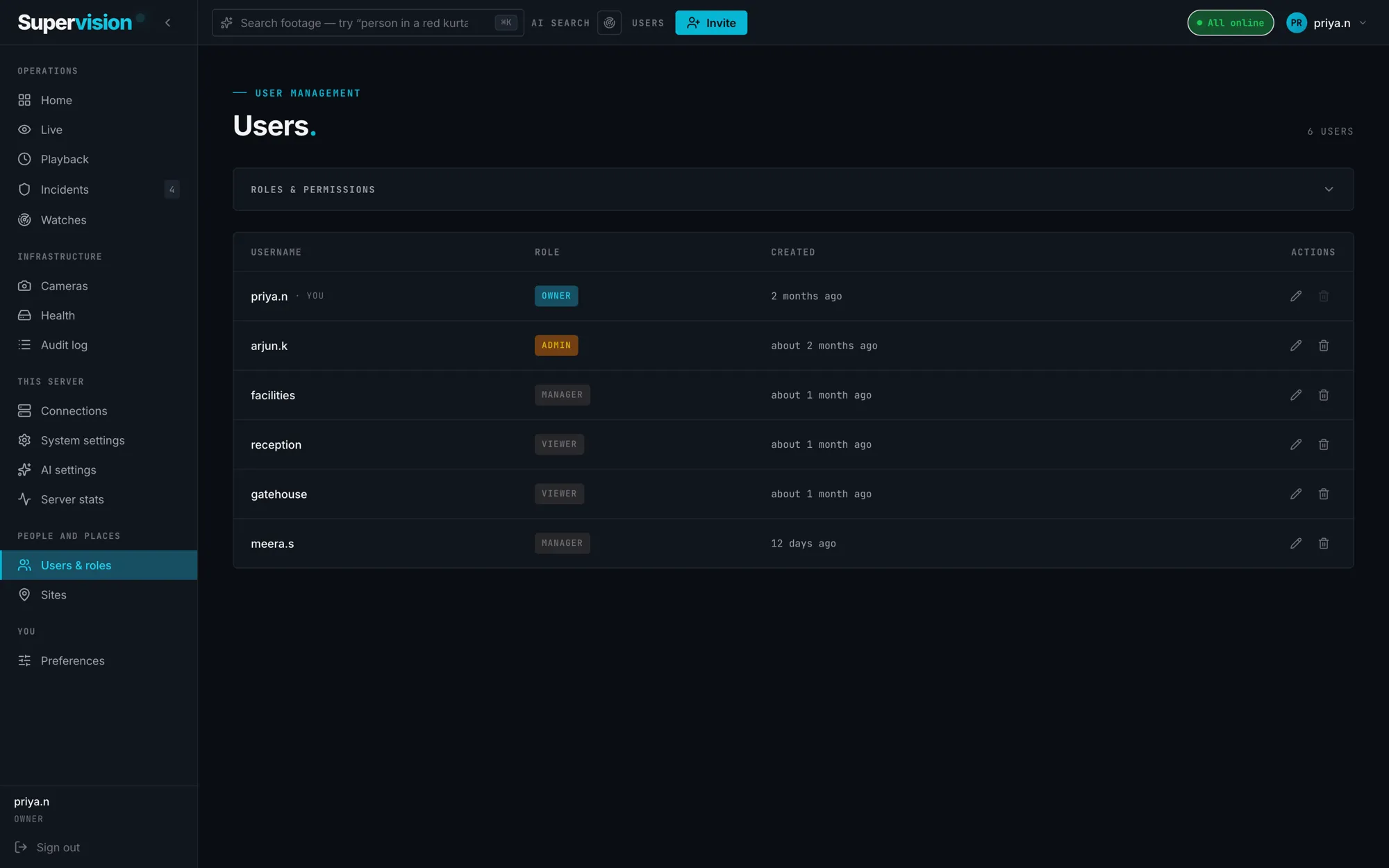
Each person has their own account and a role, from owner down to viewer. A viewer watches live and plays back; a manager also handles incidents and exports; an admin adds cameras and people; the owner sets up the server. Camera credentials are stored once on the server and are never shown to users.
The audit log records camera changes, exports and user changes, with who and when, so you can show who handled footage that became evidence. If the owner is ever locked out, someone with access to the server machine runs a recovery command on it. We can't reset it remotely.
The server
A single Go binary (One program file: no runtime, nothing to install) with an embedded SQLite (A whole database in a single file) database, running as a background service that starts again after a reboot. To upgrade, you replace that file. To back up, you copy its data folder. It talks HTTPS from the first start with a certificate the desktop app pins on first connect, and it uses the GPU (Graphics card: takes video work off the CPU) for transcoding only on the cameras that need it.
 Desktop app
macOS and Windows, Linux in beta. Mobile apps are coming.
| Port | Used for |
|---|---|
| 8443 | HTTPS API and desktop app |
| 8554 | RTSP |
| 8888 | HLS |
| 8889 | WebRTC |
How it compares
Teams usually compare Supervision with the app that came with their recorder, a traditional VMS run on Windows servers by an integrator, or a cloud service that needs its own cameras. Pick one to see the differences, including where Supervision is the wrong choice.
| Brand apps the app that came with one recorder | Traditional VMS Windows servers, a SQL database and an integrator | Cloud platforms cameras and cloud from one company | Supervisionany camera, on your own server | |
|---|---|---|---|---|
| The cameras you already have | Mainly their own brand, or whatever the recorder accepts. | Most brands, with a licence per camera and a project to set up. | Their own cameras. Existing ones are usually replaced. | Any ONVIF or RTSP camera, and whole NVRs at once, without a licence per camera. |
| Finding footage by describing it | Scrub the timeline or filter by motion. | Analytics modules, licensed separately and tuned per camera. | Yes, across their own cameras. | Plain words across every camera at once, on your own server. |
| Where footage lives | On the recorder. | On your servers. | In their cloud, viewed through their site. | On the server you run, and only there. |
| Setting up without an integrator | Yes, one brand at a time. | Usually planned and installed by one. | Yes, once the cameras are replaced. | Scans the subnet and finds every camera. A pilot with us, then your own rollout. |
| What you keep running | Nothing beyond the recorder. | Windows servers, a database and the licences. | Nothing on site but cameras. | One file per server. Upgrading replaces it; a backup is a copied folder. |
| Phone apps | Yes. | Yes. | Yes. | Not yet. Desktop apps for macOS and Windows today. |
| Cloud hosting | Some. | Some, as an add-on. | Always. | Not yet. Self-hosted today; cloud hosting is planned as an option. |
Specifications
Finding cameras
- Sweeps the subnet (Your local network's address range) for cameras and NVRs; no login is needed to find them
- Connects over ONVIF (Open standard most IP cameras speak) or plain RTSP (Plain video stream nearly every camera offers)
- An NVR (Network video recorder: one box, many cameras) brings in all its channels, main and substream (Lighter second stream, used for grids) detected
- Each stream is checked before anything is saved
Live view
- Named layouts from 1×1 to 5×5
- Under 1 second over WebRTC (Real-time video, the tech behind video calls) on the local network, with automatic HLS (Steadier streaming for slow networks) fallback
Surveillance mode
- Fullscreen wall with no window chrome
- Timed tour through every page of cameras
- Labels, location and REC overlays, each on or off
Playback
- Several cameras on one shared timeline
- One timeline per channel
- Calendar shaded by how much was recorded
AI search
- Search recorded footage in plain words, on your own server
- Every camera at once; filter by time range and camera
- Desktop notification when a live camera matches a standing search
- Open an incident straight from a match
Incidents
- Clips from every camera that saw it
- Priority, and status: open, in review, resolved
- Export as MP4
Health
- Every camera checked every 10 seconds
- Online, degraded or offline, with the reason
- Storage used per camera
People
- Roles from owner to viewer
- Audit log of camera changes, exports and user changes
Server
- A single Go binary (One program file: no runtime, nothing to install) with an embedded SQLite (A whole database in a single file) database
- Upgrade by replacing one file; back up by copying a folder
- HTTPS on by default; the desktop app pins the certificate on first connect
- Uses the GPU (Graphics card: takes video work off the CPU) for transcoding when there is one, only for cameras that need it
Enterprise
- Several sites, each with its own server, from one desktop app
- Air-gapped installs with no outbound connection; updates arrive as a file
- Directory sign-in through SAML, LDAP or Microsoft Entra ID
- Pilots on your own hardware; support and response times agreed per contract
Apps
- Desktop app for macOS and Windows, Linux in beta
- Mobile apps are coming
Hosting
- Self-hosted (Runs on your hardware, not our cloud): footage is recorded to your hardware and never reaches Bipolar Factory
- Cloud hosting is planned
Questions
Which camera brands work?
Axis, Hanwha Vision, Bosch, Vivotek and i-PRO, and in India CP Plus, Sparsh, Matrix Comsec and Honeywell, plus any camera or NVR that speaks ONVIF or RTSP. An NVR brings in every channel at once. Certification is per model; check the STQC IoTSCS portal for the model you are buying.
What can AI search find?
What you describe: a person in a white shirt, a van at the dock after midnight, a roller door left open. It searches recorded footage across every camera at once and can keep watching live. It does not identify named people.
How do we get Supervision?
Fill in the short form on the contact page and we email you download links for the desktop app straight away; the server is bundled with it. The links always fetch the latest version. If you'd like a pilot or help from an engineer, reply to that email.
How much does it cost?
We quote per deployment, based on sites and cameras. There is no public price list yet. Talk to us and we'll give you a figure to take to procurement.
Where is footage stored?
On the server you run, in your building, and only there. Nothing is sent to Bipolar Factory; we have no access to your cameras or recordings. Cloud hosting is planned as an option, not a requirement.
Can it run with no internet connection?
Yes. Discovery, recording, live view, playback and AI search all run on the server in the room. Updates are brought in as a file.
Are there mobile apps?
Not yet. The desktop app runs on macOS and Windows, with Linux in beta. Mobile apps are coming.